> ## Documentation Index
> Fetch the complete documentation index at: https://rive-layout-animation.mintlify.site/llms.txt
> Use this file to discover all available pages before exploring further.
# Dependencies Graph
> Use the Dependency Graph to visualize relationships between elements in your file
## Show Dependencies
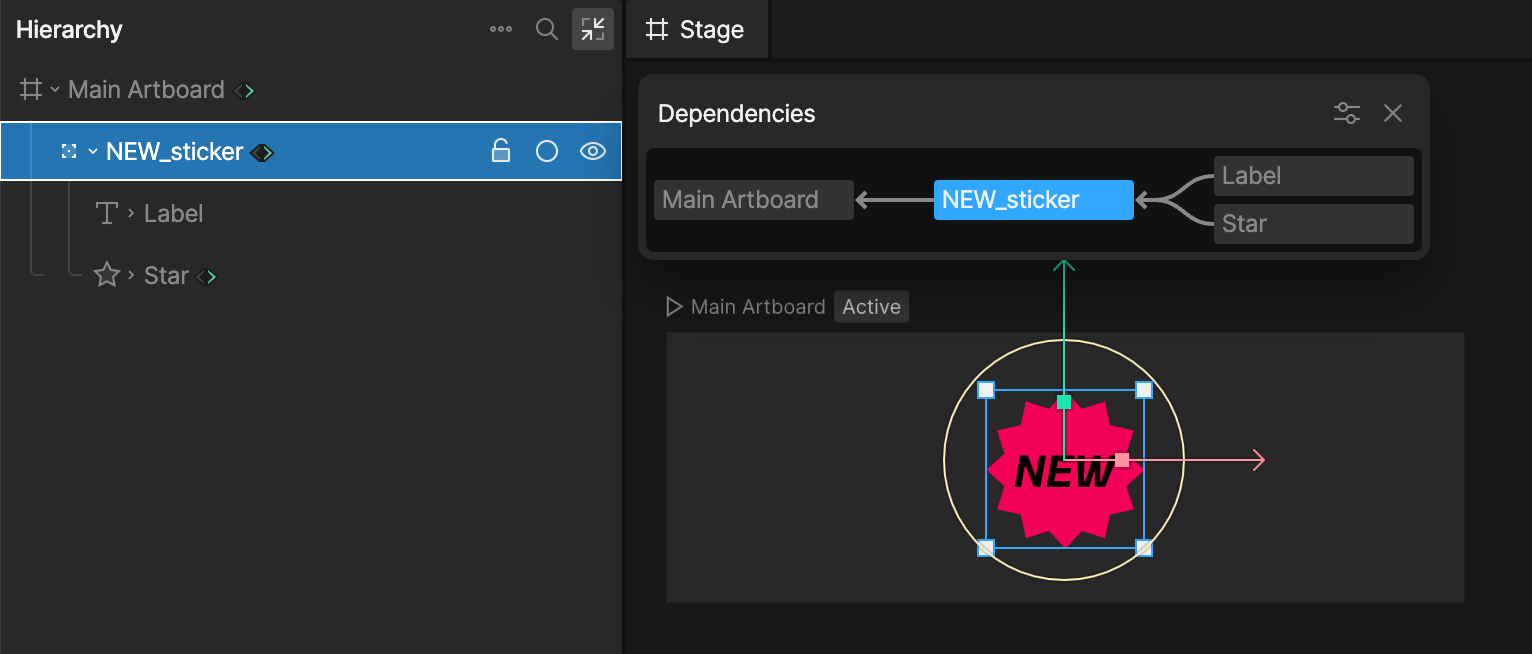
To show dependencies, select an item and press **D**. Rive displays arrows connecting the selected item to its parent and child dependencies.
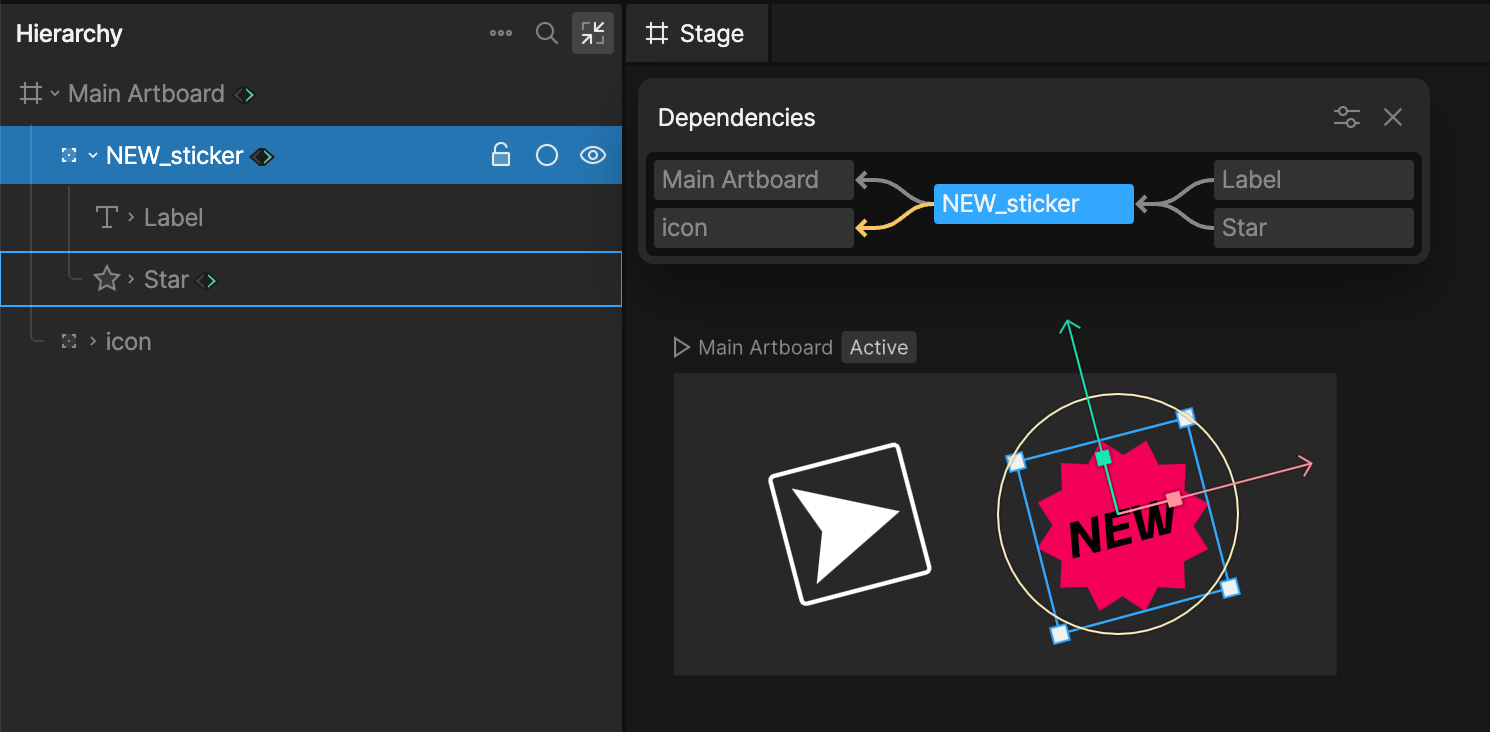
 Dependency arrows are color coded based on the type of relationship.
For example, if the rotation of `NEW_sticker` is controlled by the rotation of `Icon` through a constraint, Rive shows that dependency with a yellow arrow.
Dependency arrows are color coded based on the type of relationship.
For example, if the rotation of `NEW_sticker` is controlled by the rotation of `Icon` through a constraint, Rive shows that dependency with a yellow arrow.
 ## Filtering
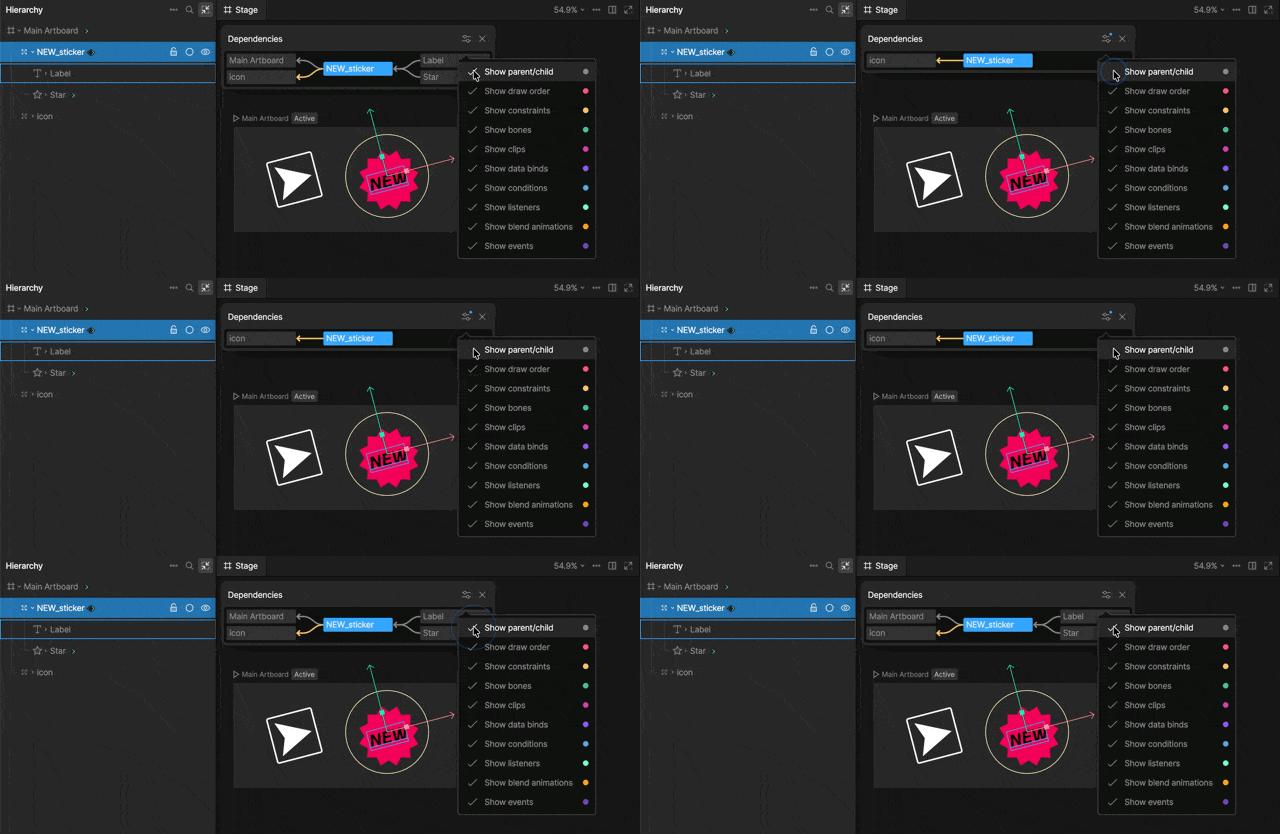
Use the dependency options to filter which relationships are shown. This is helpful when an element has many connections and you only want to focus on specific dependency types.
## Filtering
Use the dependency options to filter which relationships are shown. This is helpful when an element has many connections and you only want to focus on specific dependency types.